Architecture in Revit by Point Cloud

Kseniya Kutsenko
08. 05. 2023
The basis of the house is the foundation, everyone knows it. But what about the walls, the roof, because without them there will be no house. Today we will talk about this, namely about the architecture discipline and features of modeling its components by point cloud.
What are the components of the architecture discipline in Revit?
First of all, it`s WALL. What do we know about walls in Revit? It has its own height and thickness, you can make layers if necessary and it is always vertical. It is the latter property that sometimes causes problems when modeling with a point cloud. Because cloud modeling is very different from modeling by drawings. On the drawing, you will never see a wall with a slope, as it can be on a point cloud.
For different cases, you can choose options for working with uneven:
- You can make a wall using the “Model in Place” tool and create a wall with Sweep;
- Use the “Sweep” or “Reveal” tool. With these tools, you can create various wall curves, but for this, you will need to create your own profile;
- The “Split Element” tool can horizontally divide the wall into parts;
- With the “Wall by Face” tool you can create walls using the faces of a mass or generic model.

Which option to choose is up to you, but it is better to ask Teamlead or Project Manager.
Components related to the wall are WINDOWS and DOORS.
Quite clear and simple tools, but some questions may arise when modeling with the point cloud. The sizes of these elements are determined by the boundaries visible on the point cloud. All components (cornices, quarters, frame, sill) must be checked on each element separately because according to the point cloud, all windows/doors are different.
The point cloud does not show which way a door or window should open, but in many cases, it is possible to see this element in motion (especially for doors) by shooting the cloud from different points. Or by the position of surrounding elements, constructive logic.
In practice, we use standard families of doors/windows from templates and make different types for them. But there are projects where you need to make your own families of doors/windows for a specific point cloud. You need to be prepared for this, as "BIMProve" modelers, who can make any Revit family.
The elements that are added after the walls are the CEILING and FLOOR.
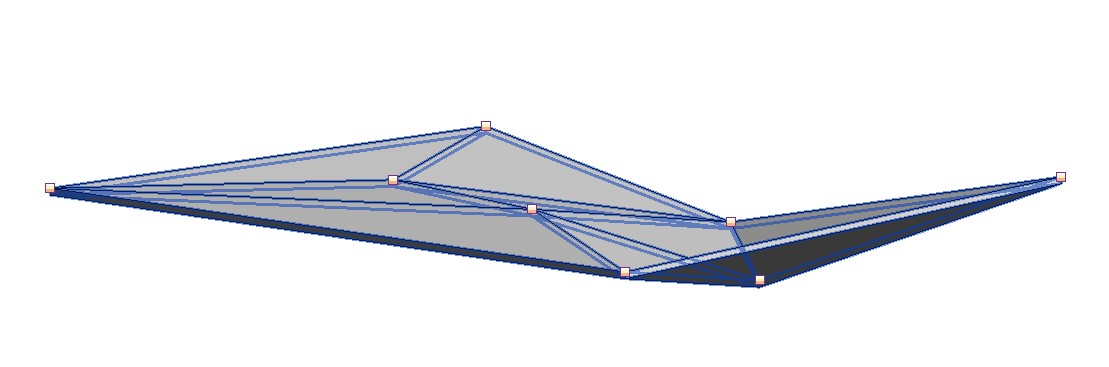
On the point cloud, most of them have slopes and irregularities, especially the floor. Therefore, in the sections, it is necessary to pay attention to the deviation of the floor/ceiling from the point cloud. In order to align the elements with the point cloud we use “Sub Elements".
Another example of architecture in Revit is STAIRS.
Nothing is perfect in our life, so the stairs cannot be perfect on a point cloud. The type of stairs should be determined by the point cloud (Assembled stair, Cast-in-place stair or Precast stair).
Pay attention to all the details of the stairs (steps, their number, stinger, riser, tread). How the railing will look in the model depends on the LOD of the project. But in any case, the handrail should be by a point cloud. The shape of the handrail and balusters depends on the LOD. There are cases when the “Model in Place” may be needed when modeling stairs. Such cases are discussed with Project Manager or Customer.
How to protect the building from precipitation, of course, with the help of the ROOF.
And that is our next component. During the existence of "BIMProve," our modelers have made a large number of different roofs. Here are some of their policies:

- For modeling by point cloud, we use a Basic Roof with the thickness by point cloud or most suitable for each type of building for structural reasons;
- The roof should be solid, not in parts;
- The roof is aligned by the point cloud after the walls/columns are attached to it.

As you have noticed, in many cases you can use the “Model in Place” tool. Some architectural forms on the point cloud can be made only with this tool. After using this tool, be sure to transfer the element to the Revit family. To simplify this operation, "BIMProve" has created a special plugin “Convert to Family”.
Share:





SOCIAL MEDIA







© Copyright BIMPROVE company LLC. All rights reserved 2026. Privacy Policy.